
Step by Step Business Phone Setup for SMB Success
Discover step by step business phone setup for SMBs. Learn how to prepare, install, configure, and verify a modern phone system for seamless communication.
By Voipcom

Modernizing your law firm’s phone system can reveal unexpected challenges, especially when remote attorneys depend on reliable connections and compliance with strict rules like HIPAA. Taking a closer look at your existing infrastructure is the first step toward building a secure, flexible foundation that supports both office and remote teams across Arizona and Colorado. By focusing on secure integration and compliance requirements from the start, you lower the risk of migration headaches and set up your firm for smooth, future-ready communication.
Table of Contents
- Step 1: Assess Existing Phone Infrastructure And Compliance Needs
- Step 2: Select Compatible Voipcom Hardware And Cloud Solutions
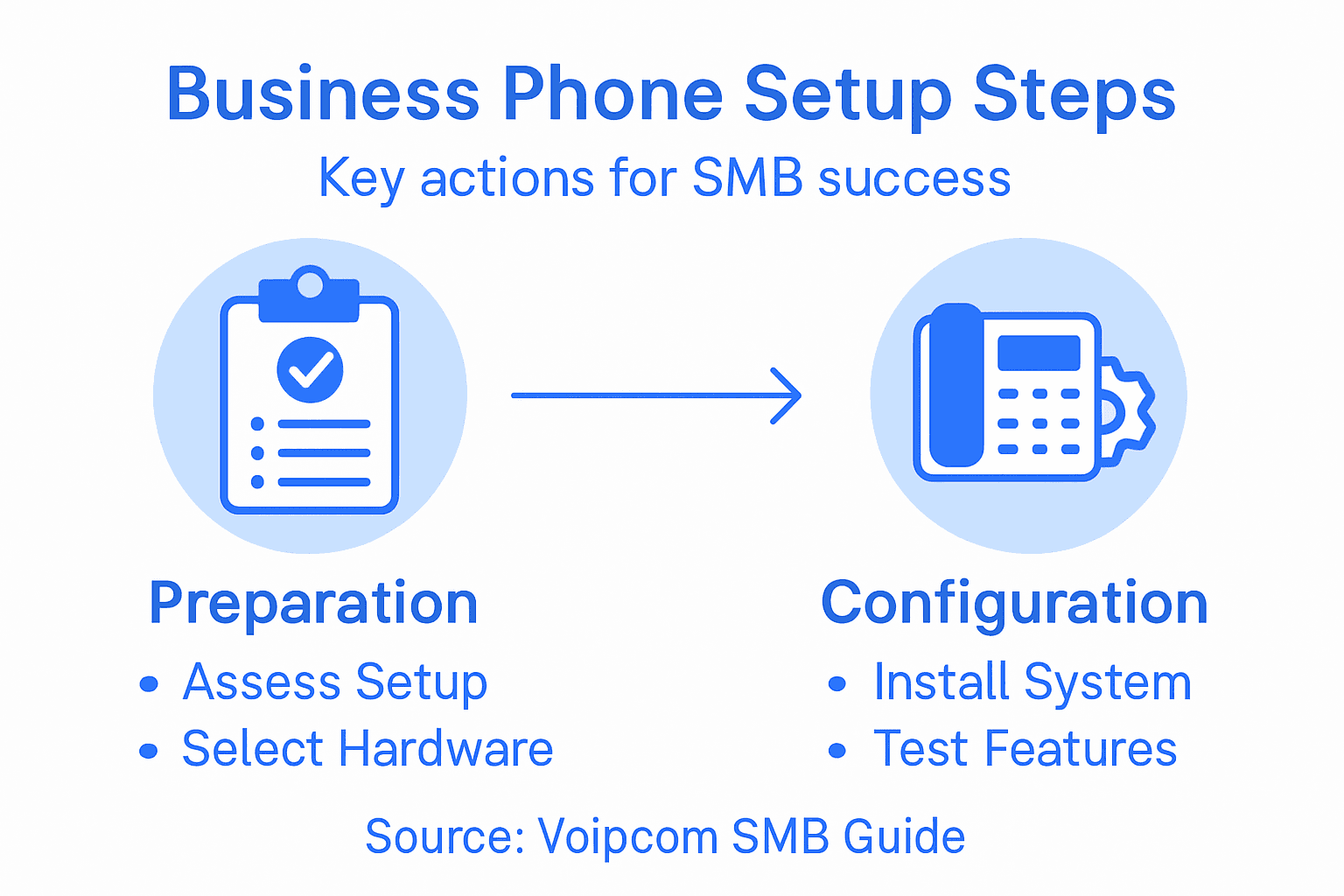
- Step 3: Install And Configure Business Phones With Voipcom Support
- Step 4: Integrate And Secure Phone System For Remote Access And Hipaa
- Step 5: Test And Verify Business Phone Functionality
Quick Summary
| Key Point | Explanation |
|---|---|
| 1. Document Your Current System | Thoroughly assess your existing phone infrastructure and compliance needs to avoid future compatibility issues during the transition. |
| 2. Choose Appropriate Voipcom Solutions | Select compatible Voipcom hardware and cloud services that align with your firm’s unique requirements and compliance obligations. |
| 3. Ensure Proper Installation Process | Prepare network infrastructure before hardware installation, coordinating with Voipcom for smooth activation and setup. |
| 4. Focus on Security and Compliance | Implement secure remote access and encryption in line with HIPAA and other regulations to protect sensitive client information. |
| 5. Conduct Thorough Testing | Validate all phone system features and workflows through rigorous testing to identify and resolve potential issues before going live. |
Step 1: Assess existing phone infrastructure and compliance needs
Before you swap out your phone system, take a hard look at what you’ve got running right now. This foundation step determines whether you can move forward with confidence or if hidden compatibility issues will blindside you later.
Start by documenting your current setup. Write down what type of system you’re using (traditional PBX, VoIP, hybrid), how many extensions you have, which features your team actually relies on, and where calls are routed. Don’t skip this part. Many firms discover they depend on features they didn’t even know existed until they try to migrate.
Next, pull together details on your physical infrastructure. Check your internet bandwidth (ask your IT team for actual upload and download speeds, not what your ISP promises). Identify all locations that need phone service—your main office, remote workers, satellite offices across the Denver Tech Center or Phoenix Warehouse District. Verify that your network can support VoIP traffic without dropping calls or creating quality issues.
Compliance is where this gets critical for law firms. You must understand your regulatory obligations:
Below is a quick reference to common phone system types and their advantages for law firms:
| System Type | Key Benefit | Common Challenges |
|---|---|---|
| Traditional PBX | Reliable, works without internet | Costly upgrades, limited mobility |
| VoIP | Flexible, supports remote access | Relies on stable internet connection |
| Hybrid | Mix of PBX and VoIP features | Can be complex to manage |
| Cloud-Based PBX | Scalable, all-in-one platform | Security and regulatory compliance |
- HIPAA requirements if you handle any health information
- State bar rules around confidential client communications
- Call recording regulations (some states require two-party consent)
- Data retention obligations for archived voicemails and call logs
- Attorney-client privilege protections for sensitive conversations
If you represent healthcare clients or handle medical records, proper HIPAA compliance for business communications becomes non-negotiable. Document your current compliance status, any gaps, and what your new system must support.
Also audit your existing contracts. Check termination fees, porting restrictions, and whether your current provider locks you into equipment purchases. These details matter when budgeting for the switch.
Document your current system, internet capacity, and compliance requirements before moving forward. This step prevents costly surprises and ensures your new setup meets regulatory standards.
Pro tip: Create a simple spreadsheet listing each user, their primary location, essential features they use daily, and any compliance requirements their role requires. This becomes your blueprint for configuring your new system and prevents the “we forgot to enable that feature” problems after go-live.
Step 2: Select compatible Voipcom hardware and cloud solutions
Now that you understand your current setup and compliance needs, it’s time to pick the right hardware and cloud platform. This is where your new phone system actually takes shape and starts delivering value to your firm.
Start by identifying which Voipcom hardware options match your infrastructure. Voipcom offers phones, headsets, and adapters that work seamlessly with hosted PBX systems. If you have analog fax machines or legacy equipment you want to keep using, you’ll need SIP trunks or analog adapters to bridge them into the cloud. Document whether you need desk phones for every attorney, shared conference room phones, or a hybrid approach with mobile softphones for remote workers.

Consider your office footprint. If you have teams scattered across Denver and Phoenix, cloud solutions eliminate the need for separate phone systems in each location. Everyone connects through the same hosted platform regardless of geography. This matters when you’re juggling calls between a busy downtown Denver office and satellite locations.
Next, evaluate your specific requirements against available solutions:
- How many concurrent calls do you need to support during peak hours?
- Do you require specific Voipcom features like call recording for compliance or automatic failover for business continuity?
- Will you use Voipcom’s Microsoft Teams integration or prefer standalone phones?
- Do remote attorneys need mobile softphone apps that work anywhere with internet access?
Voipcom’s cloud phone system options are built for businesses like yours, with no hidden equipment costs or setup fees. The platform handles everything from call routing to voicemail-to-email transcription.
Request quotes based on your user count and feature set. Get clarity on what’s included, what’s optional, and what the per-user monthly cost actually covers. Law firms often discover that all-inclusive pricing (no surprise add-ons) saves money and headaches compared to traditional carriers.
Choose hardware and cloud features that support your compliance requirements while simplifying daily operations for your team.
Pro tip: Schedule a brief demo with Voipcom using a handful of real-world scenarios from your firm (transferring calls between offices, recording a client consultation, handling voicemail from a mobile device). This reveals whether the system actually fits your workflow before you commit.
Here’s how Voipcom features impact daily operations:
| Feature | Business Impact | Compliance Contribution |
|---|---|---|
| Call Recording | Quality control, training, documentation | Meets state retention regulations |
| Voicemail-to-Email | Speeds message retrieval | Ensures timely communication records |
| Mobile Softphone Apps | Enables remote work | Uses encrypted channels for privacy |
| Audit Logging | Tracks changes, boosts accountability | Supports HIPAA audit requirements |
Step 3: Install and configure business phones with Voipcom support
You’ve assessed your needs and selected your hardware. Now comes the actual installation and setup that gets your team talking on the new system. Voipcom handles most of the heavy lifting, but knowing what to expect keeps things moving smoothly.
Start with network preparation. Your IT team should verify that your internet connection is stable and has sufficient bandwidth for VoIP traffic. Check that your firewall and network equipment won’t block VoIP ports. If you’re running phones across multiple Denver or Phoenix locations, confirm that all sites have adequate internet capacity. Test your network before hardware arrives to avoid delays.
When equipment ships, unpack it carefully and verify everything matches your order. You should receive phones, handsets, power supplies, and any adapters needed for legacy equipment. Set phones aside in their intended locations. Don’t connect them yet.
Next, coordinate the actual activation with Voipcom. The process typically involves:
- Porting your existing phone numbers (if switching from another carrier)
- Configuring extension numbers and call routing rules
- Setting up voicemail boxes and auto-attendant greetings
- Testing call paths before going live
- Training your team on new features
Voipcom’s support team handles number porting at no extra charge, which eliminates one major headache. They’ll work with your old carrier to move numbers over seamlessly. Setting up cloud phone systems requires attention to call routing logic, so don’t rush this phase.
Once configuration is complete, plug in your phones and test them systematically. Make internal calls between extensions. Forward calls to mobile devices. Test voicemail and call recording. Have attorneys practice recording a client conversation to verify compliance features work correctly.
Voipcom provides live local support during installation. Use them. They’ve configured hundreds of law firm phone systems and know the gotchas unique to your practice type.
Proper installation takes time, but getting it right prevents weeks of frustrating workarounds later.
Pro tip: Schedule your go-live for a Tuesday or Wednesday morning, not Friday afternoon. This gives you time to fix unexpected issues while Voipcom support is available, and prevents your firm losing phone service over the weekend.
Step 4: Integrate and secure phone system for remote access and HIPAA
Your phones are live. Now it’s time to add the security and remote access layers that let your team work safely from anywhere while protecting sensitive client information. This step separates a basic phone system from one that truly supports modern law firm operations.
Start by configuring secure remote access. Attorneys working from home, client sites, or between Denver and Phoenix offices need to reach the phone system securely. Voipcom’s mobile softphone app uses encrypted connections, so calls don’t transmit in the clear over public WiFi networks. Enable multi-factor authentication for all remote users to prevent unauthorized access. Test the softphone on your network and on external connections to verify it works reliably.
Next, address encryption requirements. HIPAA-regulated calls need end-to-end encryption during transmission. Evaluate whether Voipcom’s standard encryption meets your firm’s requirements or if you need additional security measures like secure conference bridges for client calls involving health information. Document your encryption approach for compliance audits.
Secure integration with your other systems matters too. If you’re using Microsoft Teams or Office 365, verify that Voipcom’s integration doesn’t bypass security controls. Test that call logs, recordings, and voicemails are stored in compliant locations with proper access restrictions. Conducting IT infrastructure assessments focused on encryption standards and risk evaluation helps ensure all communication tools work together securely.
Configure call recording carefully. Your firm likely needs to record client calls for quality assurance or compliance documentation. Ensure recordings are:
- Encrypted at rest and in transit
- Stored in secure, access-controlled locations
- Retained according to your document retention policy
- Deleted automatically after the required period expires
Set up audit logging for all system changes and user access. HIPAA requires proving who accessed what information and when. Voipcom maintains these logs, but your firm must know how to retrieve them for audits or investigations.
Final step: test everything with realistic scenarios. Have an attorney take a call from a coffee shop. Make a three-way conference call between your Denver office, a Phoenix remote worker, and a client. Record a call and verify it encrypts properly. These tests catch configuration mistakes before they become compliance violations.
Security isn’t a one-time configuration. Plan to review your phone system’s security settings quarterly as your firm grows or your practice areas change.
Pro tip: Keep a simple security checklist documenting your encryption methods, remote access policies, recording procedures, and audit log review schedule. Show this to your IT auditor and bar association if compliance questions arise later.
Step 5: Test and verify business phone functionality
Before you declare victory and tell your team the new system is ready, you need to systematically test every feature that matters to your firm. Hidden issues discovered after full deployment create chaos and erode confidence in the new system.
Start with basic call quality. Place test calls between extensions from different locations and devices. Call from your Denver Tech Center office to a remote worker in Phoenix. Try calling from the mobile softphone app over WiFi and cellular data. Listen for clarity, drop-outs, or delays. If call quality is poor, your IT team needs to investigate bandwidth, firewall rules, or network prioritization before going live.
Next, test call routing and transfers. Incoming calls should land in the right queue or ring the correct person. Transfers between extensions and to external numbers should work smoothly. Conference calls with three or more participants should maintain audio quality. Test transferring calls while the receiving attorney is on another line to verify your hold and transfer logic works correctly.
Then verify voicemail and auto-attendant features. Leave messages in voicemail boxes and confirm they’re retrievable from desk phones and mobile apps. Test after-hours auto-attendant greetings. Proper business voicemail setup ensures callers reach the right person and messages arrive reliably.
Test specific workflows critical to law firms:
- Call recording starts and stops properly, and files are accessible
- Call transfers don’t drop HIPAA-regulated conversations
- Do-not-disturb mode silences notifications without losing calls
- Call forwarding to external numbers (like a paralegal’s cell) works reliably
- Voicemail-to-email transcription delivers messages to the right inbox
Check integration features. If attorneys use Microsoft Teams, verify that Voipcom calls appear in Teams history and that Teams presence shows availability accurately. Test clicking a phone number in a contact record and having the call launch from Voipcom.
Finally, run a full-team training session. Have attorneys and staff use the new system under your supervision. They’ll uncover edge cases you missed, and hands-on practice builds confidence before day one.
Testing finds problems while you can still fix them. Skipping thorough testing guarantees an expensive, frustrating first week.
Pro tip: Create a simple test checklist documenting every feature you verified and who tested it. When someone reports an issue later, this checklist proves whether the problem existed during testing or appeared afterward, helping Voipcom support troubleshoot faster.
Simplify Your Business Phone Setup with Voipcom
Setting up a reliable business phone system can be overwhelming. From assessing your current infrastructure and compliance needs to choosing the right hardware and ensuring secure remote access the process often feels complex and risky. If you want to avoid unexpected issues like poor call quality complicated number porting or compliance gaps Voipcom offers the modern cloud-based solutions your small or medium business needs.
Voipcom specializes in fully managed cloud phone systems that streamline setup and simplify ongoing management. Our all-inclusive pricing means no hidden fees on ports or setup and our live local support team works closely with you from day one. With features like mobile softphones encrypted calls call recording for compliance and seamless Microsoft Teams integration your firm can focus on what matters while we keep your communications running smoothly.
Ready to make your phone system work for your business instead of the other way around? Discover how Voipcom can transform your communications today.

Explore our flexible voice and telephony offerings and get started now by scheduling a personalized consultation at Voipcom cloud phone solutions. Don’t wait until costly surprises disrupt your business switch to a smarter phone system that supports your growth and compliance needs.
Frequently Asked Questions
What steps should I take to assess my existing phone infrastructure before making changes?
Before making changes, document your current phone system, including its type and features, as well as your internet bandwidth and any compliance requirements. Start by creating a spreadsheet listing your current setup, locations needing service, and features your team uses daily.
How do I choose the right hardware for my new phone system setup?
Identify Voipcom hardware options that fit your firm’s specific needs, such as desk phones and adapters for legacy equipment. Focus on features like mobile softphone apps and conference room phones to support both remote and in-office workers.
What should I do to ensure my new phone system complies with industry regulations?
Understand your compliance obligations, including HIPAA and any local regulations regarding client communications. Document your current compliance status and identify any features your new phone system must support, such as call recording and data retention policies.
How can I prepare for the installation and configuration of my new phone system?
Ensure your IT team verifies internet stability and bandwidth sufficient for VoIP traffic before installation. Coordinate activation and setup with your service provider, including number porting, extension configuration, and testing features before going live.
What are some key features I should test before going live with my new phone system?
Test essential features such as call quality, call routing, voicemail functionality, and auto-attendant settings. Conduct a full-team training session to familiarize everyone with the new system and uncover any potential issues before deployment.